Tobsy
Home Ledger Analysis Add Calendar Intentions Goals & Plans

Every screen · the same on a laptop and on a phone · pictures from the app's own demo data

Home. Your month, at a glance.

Income, spending, and what you kept. A note when a category drifts from its usual range. The next seven days. And a forecast for the month that shows its spread instead of pretending to a single number.
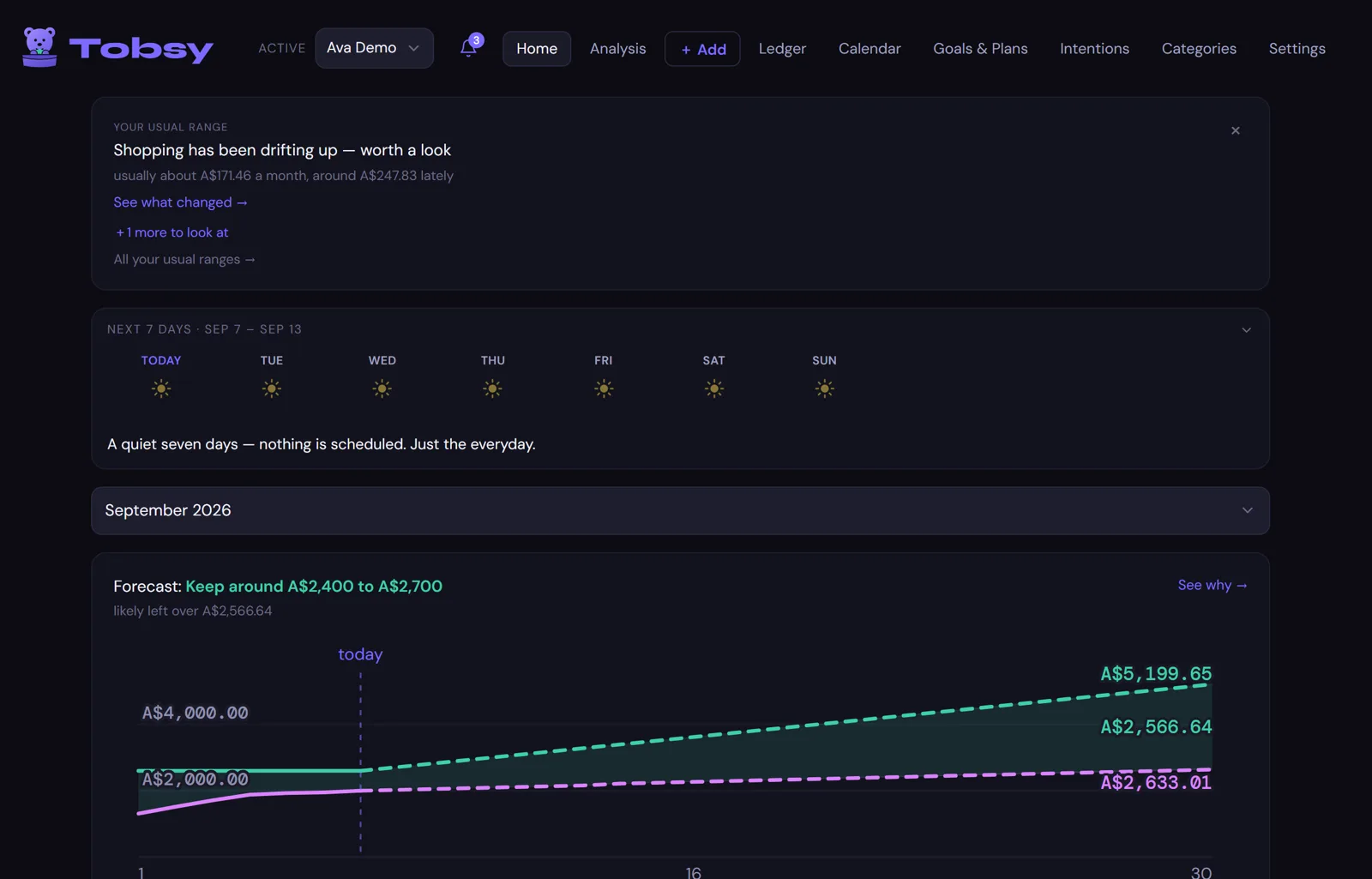
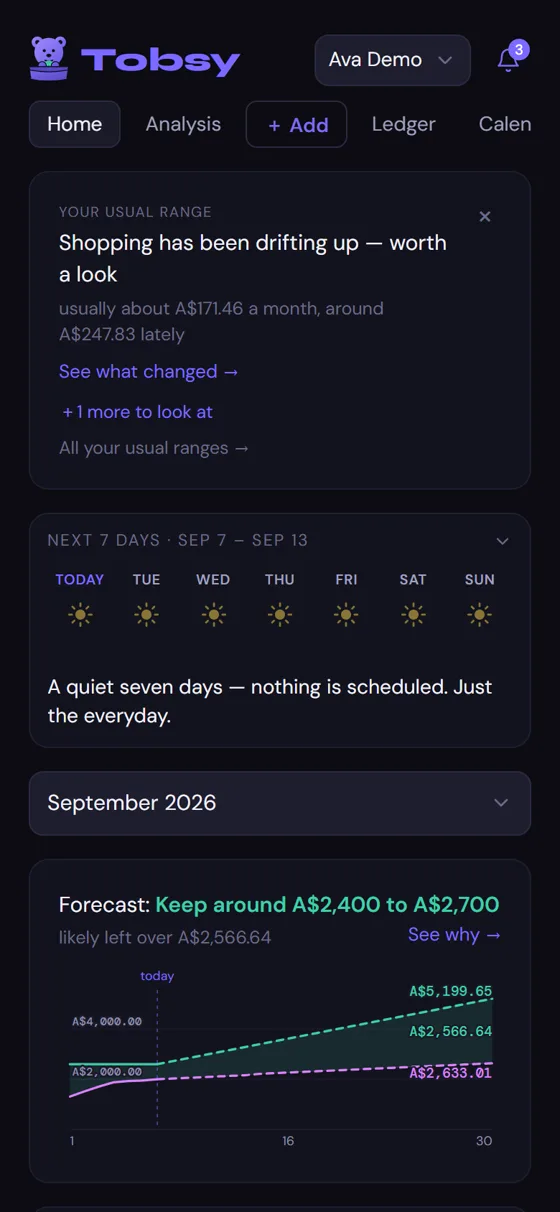
Home on a laptop: a usual-range note about Shopping, a quiet next seven days, and the September forecast band.
Home on a phone.

On the phone

The same Home, the same numbers. Tobsy installs from the browser and opens like any other app on your phone.

  • Swipe between screens; the tabs are the same ones.
  • The week ahead folds to a line; tap it to open.
  • Everything you can do on the laptop, you can do here.
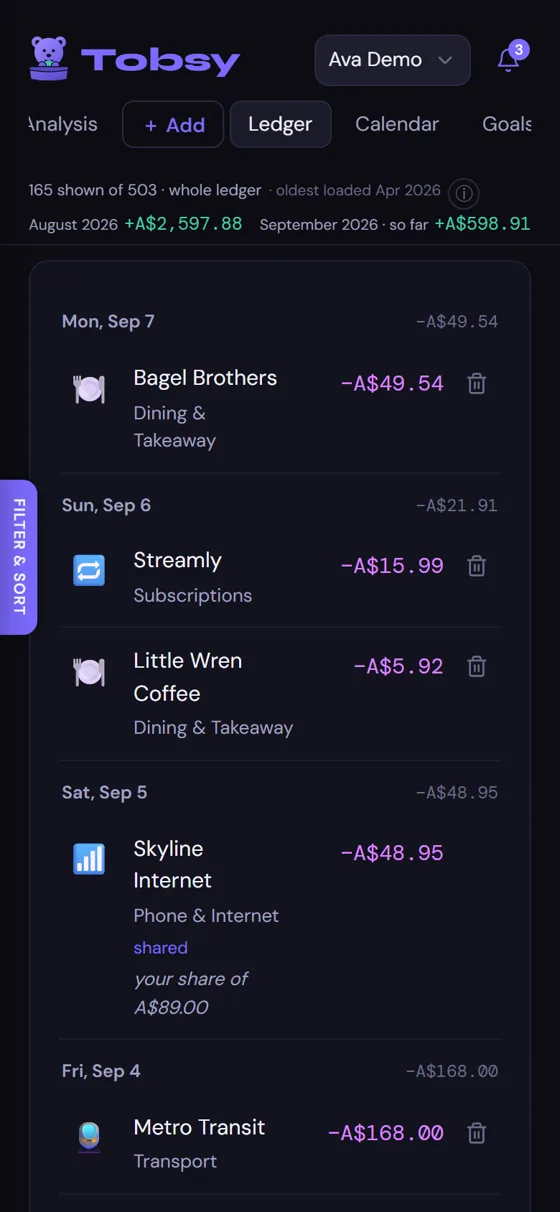
Ledger. Every entry, and nothing hidden in it.

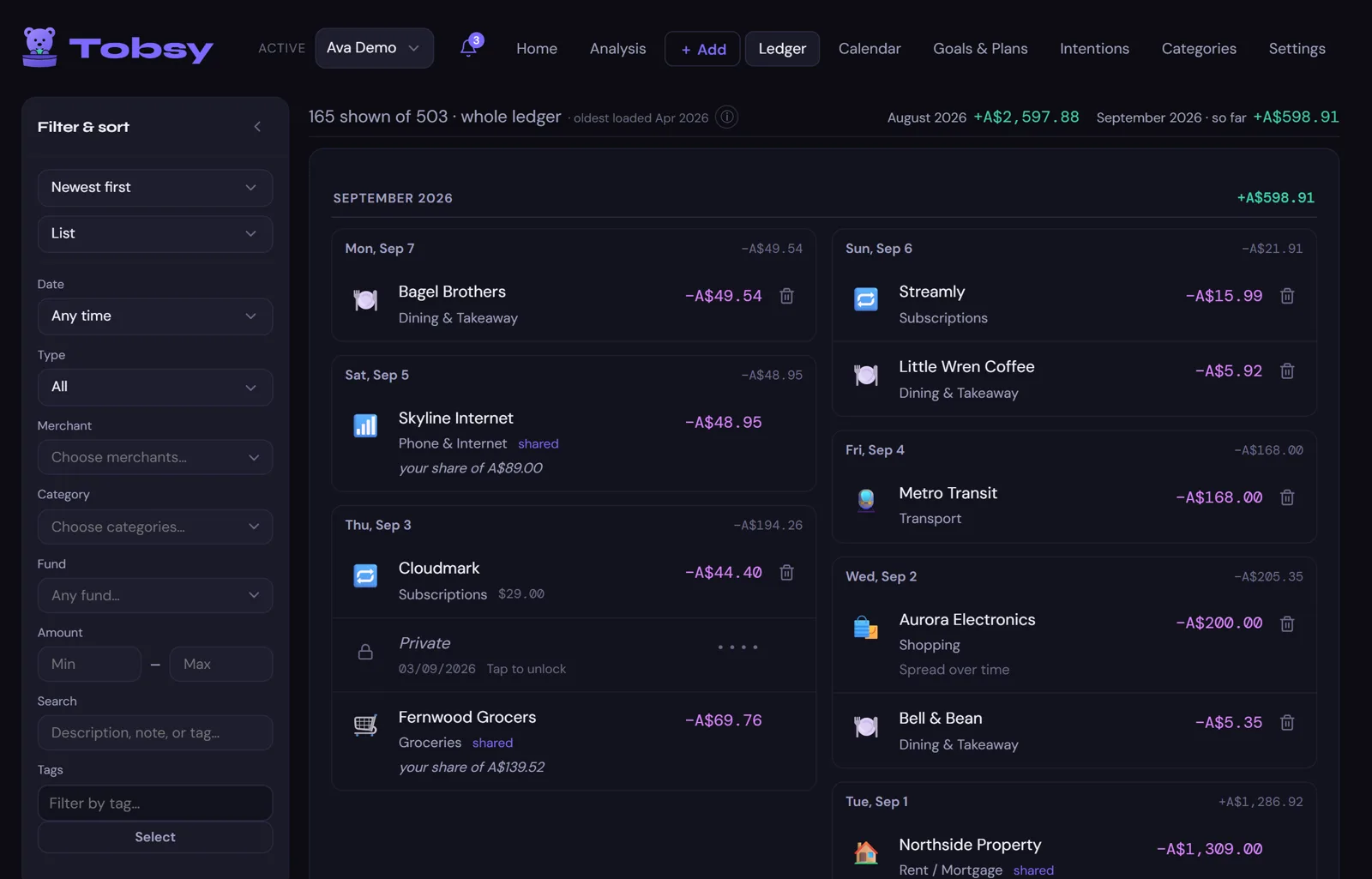
Filter by date, type, merchant, category, fund or tag. Each month totals itself. A shared cost shows your share underneath. A private row shows as dots until a PIN is entered.

The ledger on a laptop: the filter panel on the left, September's entries on the right, one private row shown as dots.
The ledger on a phone.

On the phone

The filter panel tucks into a tab on the side; the list is the same list.

  • Tap an entry to edit it. Long-press for the quick actions.
  • Bulk-edit a selection: recategorise, retag, move.
  • Older months load as you scroll; nothing is hidden by the window.

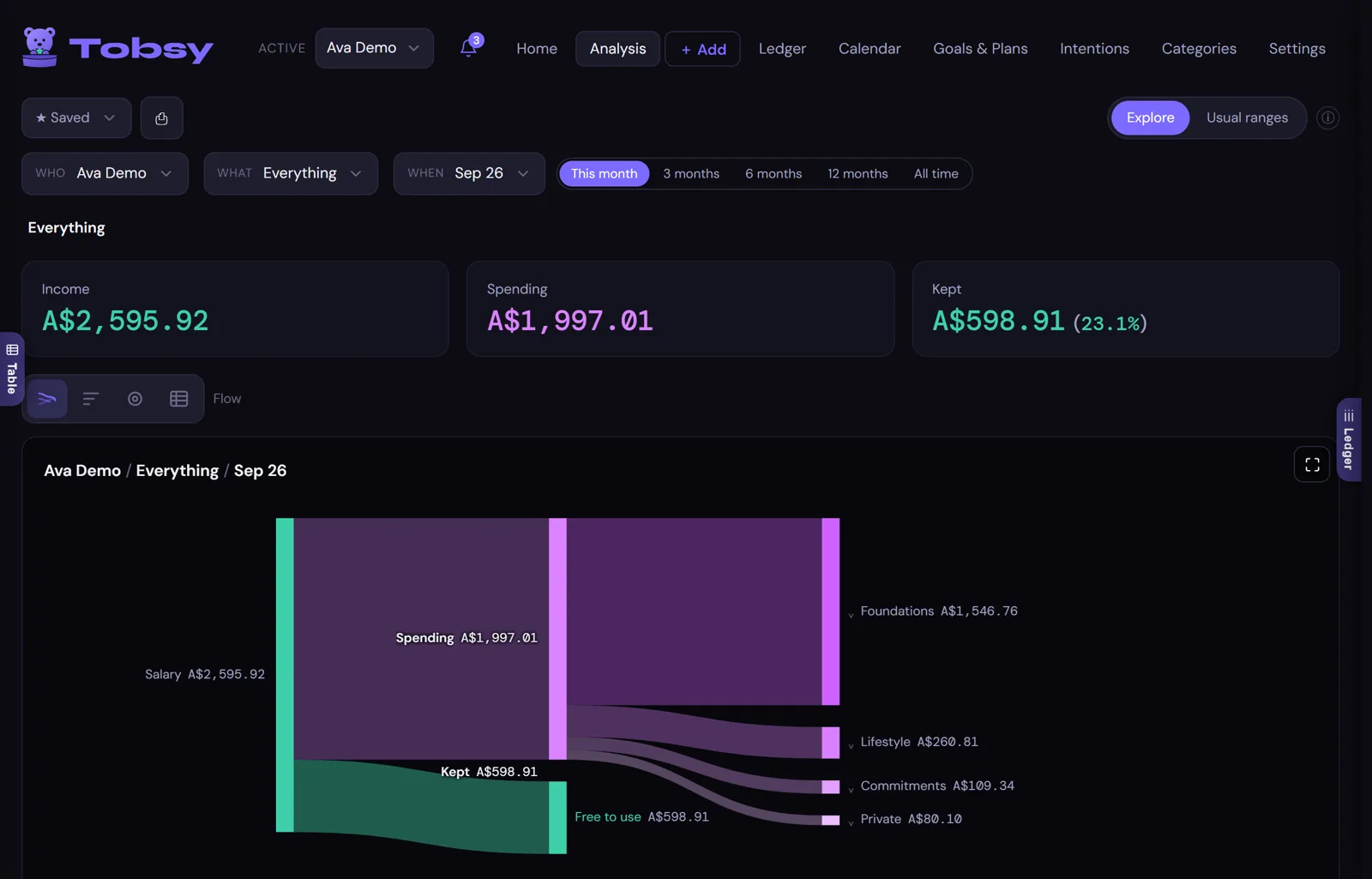
Analysis. Where it all went, drawn as a flow.

Income on the left, where it ended up on the right, what you kept in between. Change who, what and when. Switch the shape to bars, a donut or a table. Compare two people, two years, or two categories side by side, and see your usual ranges for every category.

Analysis on a laptop: income, spending and kept tiles above a flow diagram from salary to categories and kept.
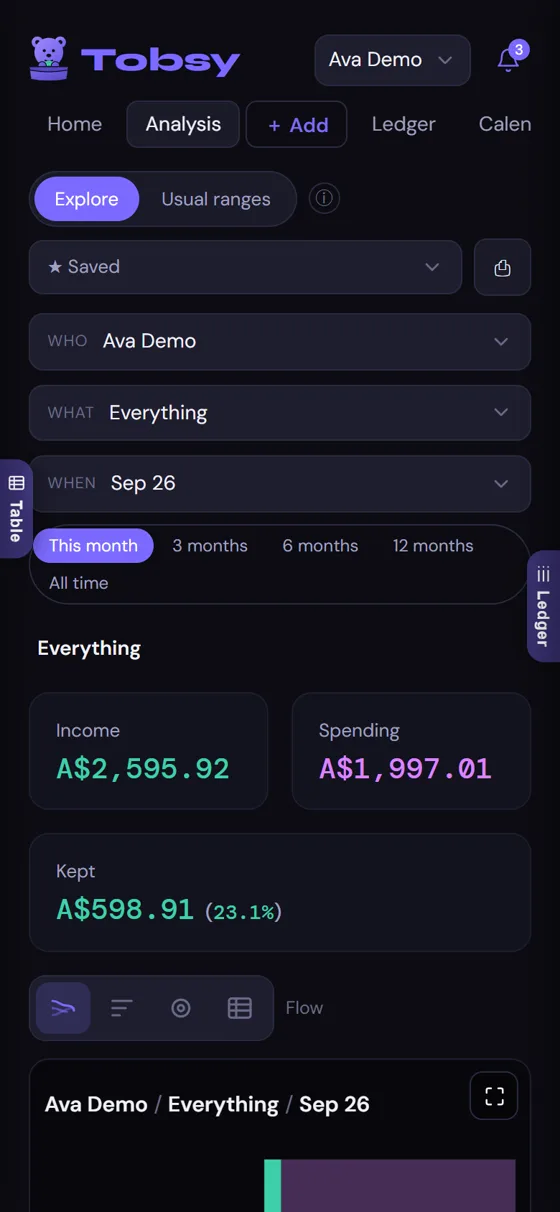
Analysis on a phone.

On the phone

The who / what / when pickers stack; the chart takes the width. Rotate the phone for the wide view.

  • Tap a band to drill into its categories, then its merchants.
  • The table view lists the same figures, to the cent.
  • Save a view you come back to. Print an analysis to PDF.

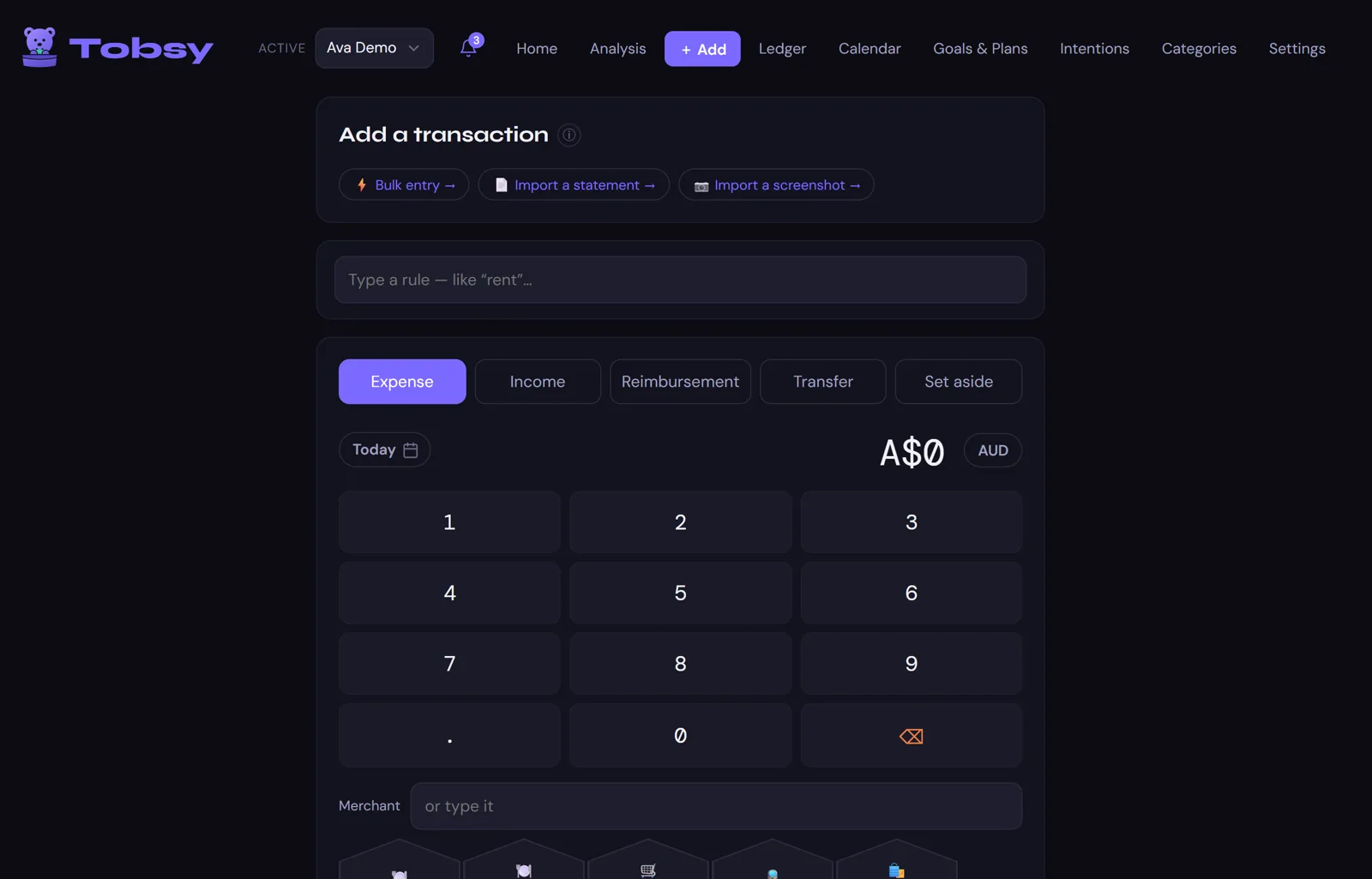
Add. A purchase takes a few taps.

Amount, category, done — the merchant and the category fill themselves in as Tobsy learns you. Bulk-enter a whole week on one grid. Paste a bank statement, or import a screenshot from your banking app, and review every row before it lands.

The Add screen on a laptop: the entry type, a rule box, the amount and the number pad.
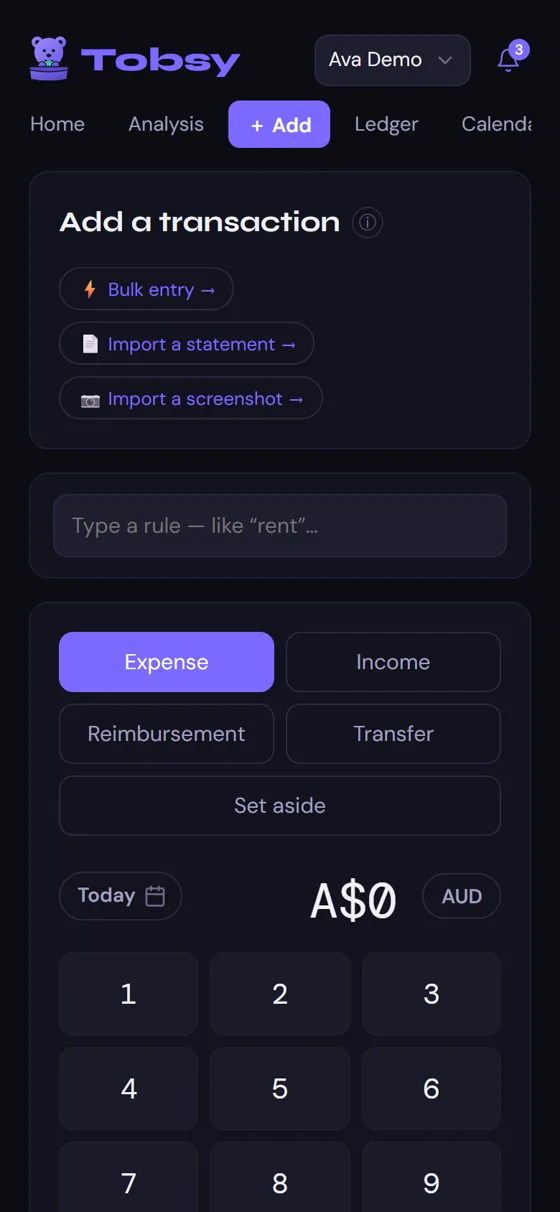
The Add screen on a phone, with its number pad.

On the phone

This is where most entries happen — at the counter, in a few seconds.

  • Type a rule like "rent" and it fills the rest.
  • Split a cost with the household with one toggle.
  • Paste a statement straight from your bank's app.

Calendar. What's coming, before it comes.

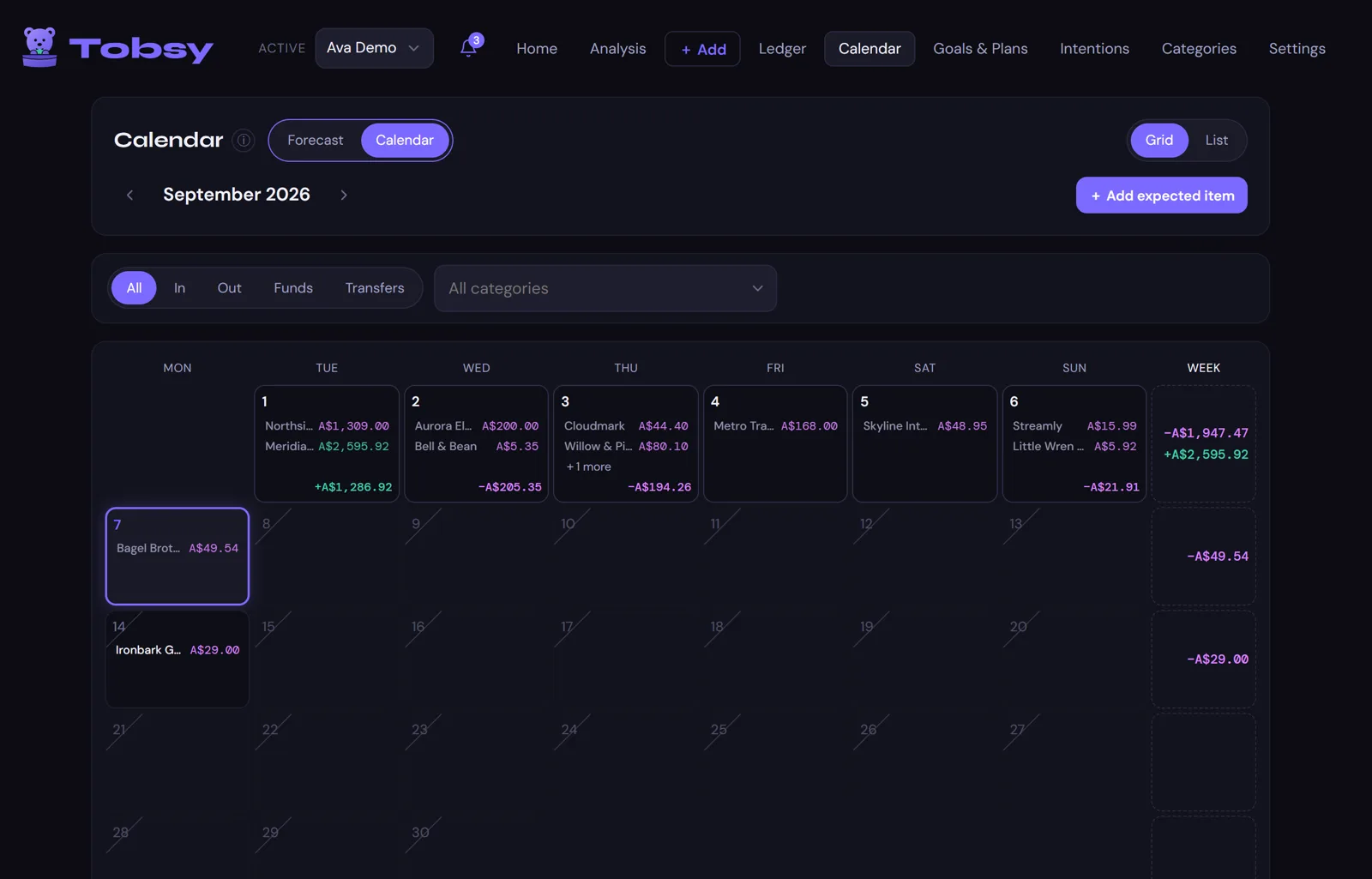
Bills that usually land, pay days, planned instalments and the things you've told it to expect — on a month grid or a list, with the week's totals beside it. The week ahead is the same picture as a plain note.

The calendar on a laptop: September in a grid, each day's entries and the week's totals.
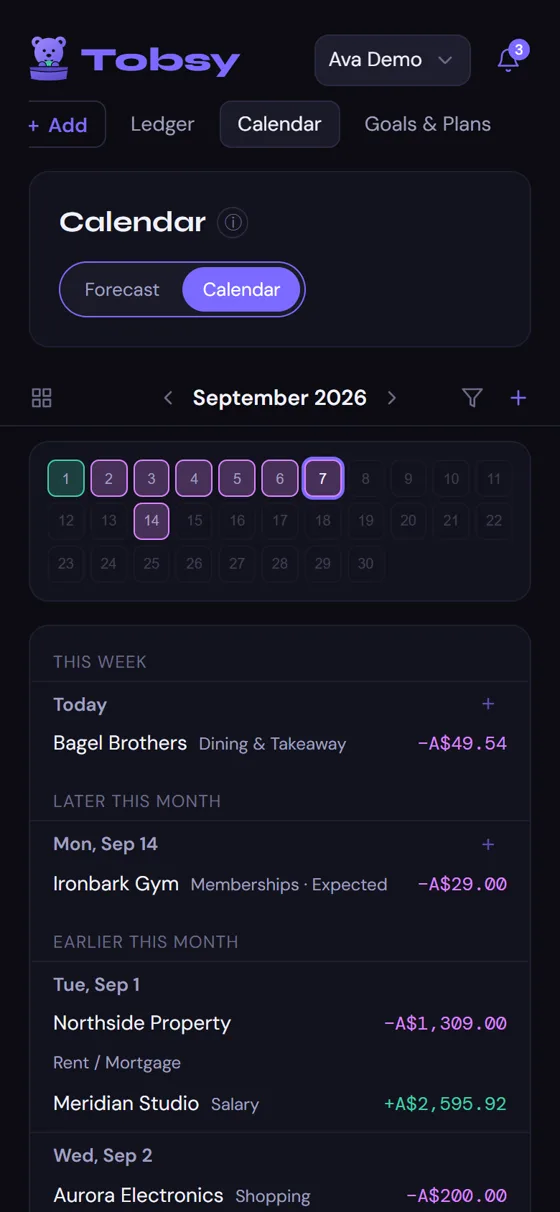
The calendar on a phone.

On the phone

The grid becomes a strip of days with the list underneath; tap a day to see it.

  • Add an expected item from the day itself.
  • Confirm a regular the first time it shows up and it's a rule from then on.
  • The forecast toggle shows the month's likely shape.

Intentions. Not a budget.

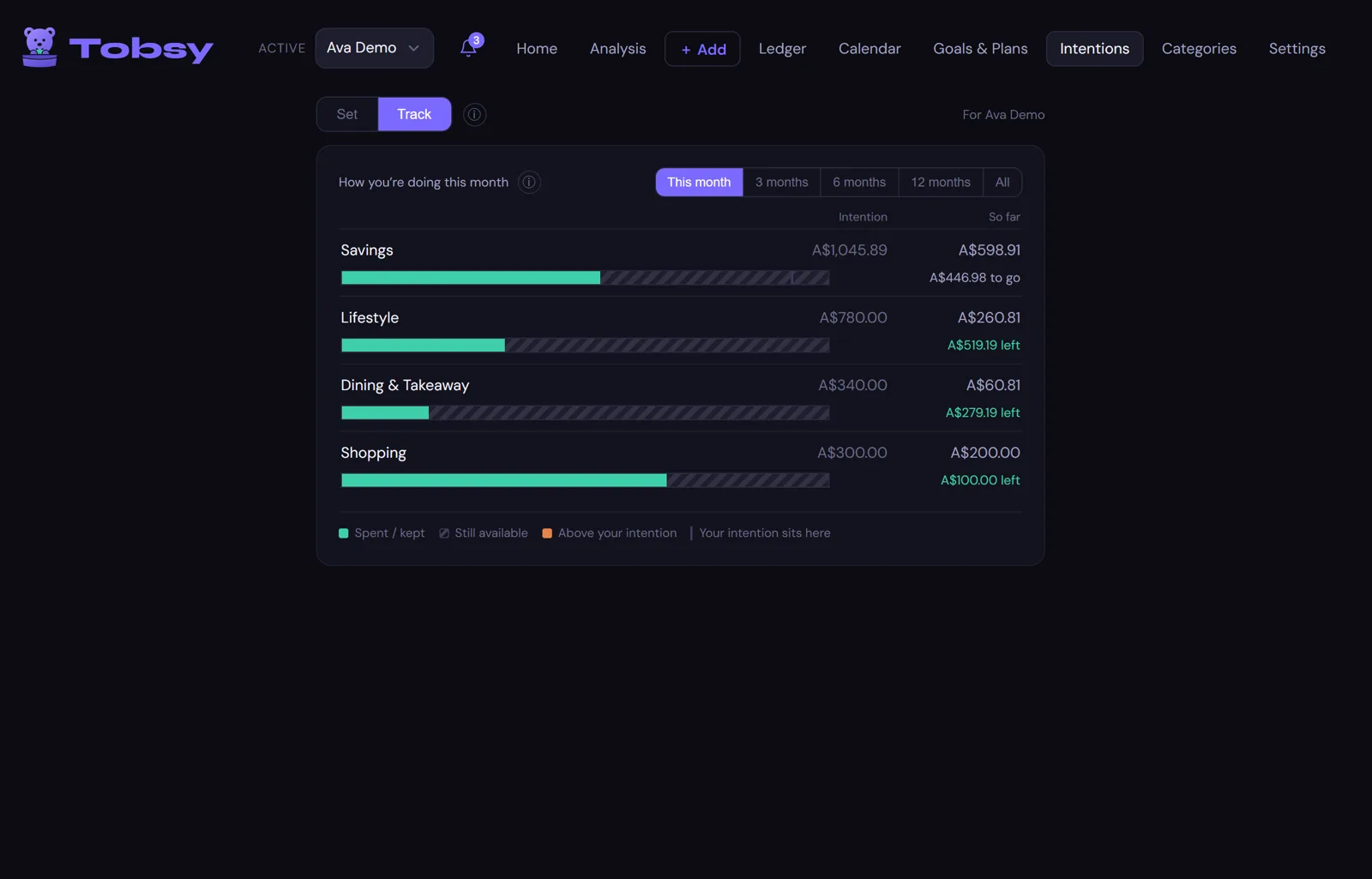
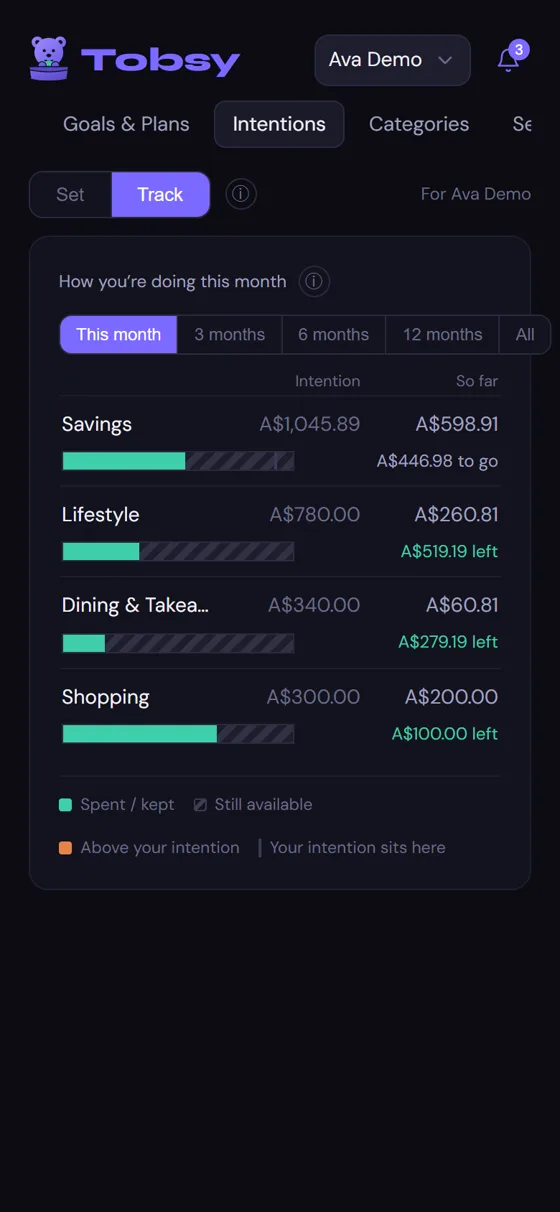
Set a ceiling for a category, or a floor for what you keep, and watch it calmly. Tobsy tells you where you sit — "A$279 left", "A$447 to go" — and never scolds. Look back over three, six or twelve months to see how you usually do.

Intentions on a laptop: four rows — Savings, Lifestyle, Dining and Takeaway, Shopping — each with a bar and what's left.
Intentions on a phone.

On the phone

The same rows and bars, the same words. Set and Track are two tabs at the top.

  • A ceiling turns gold as it nears, amber once above. Never red.
  • A floor for savings is celebrated when met, and stays calm when not.
  • Nothing here changes a number anywhere else.

Goals & Plans. Money set aside, and costs spread over time.

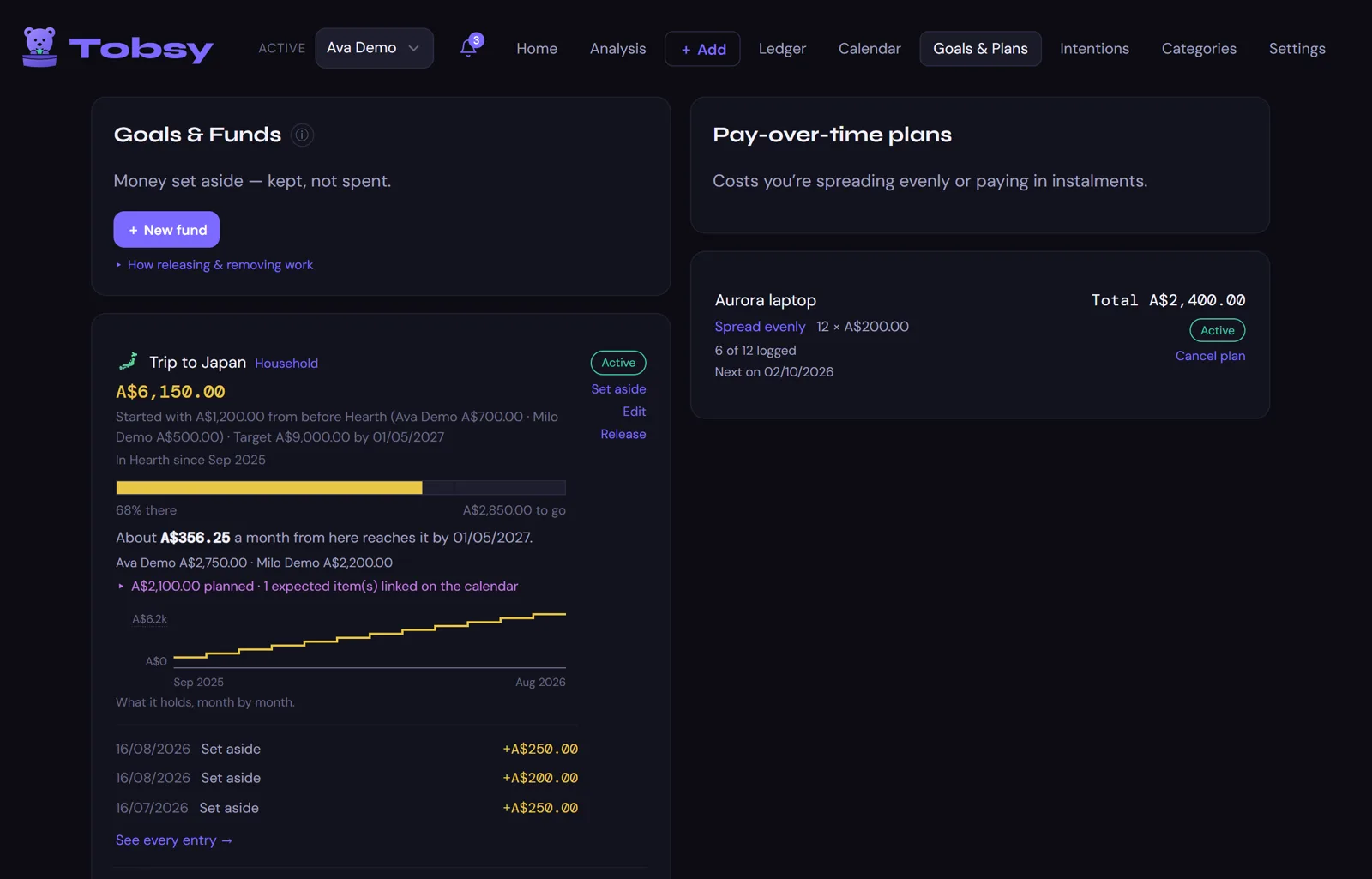
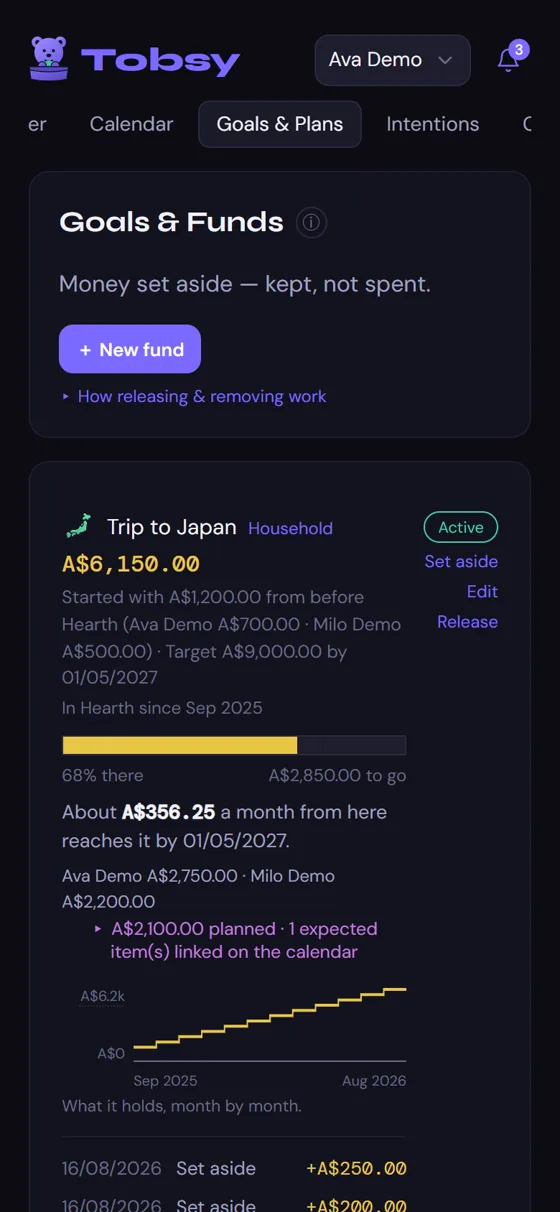
A fund is money you've kept for something — a trip, a rainy day. It shows what it holds, how far along it is, and when it gets there at your usual pace. A plan is a cost you're paying over time — a laptop in twelve — with each instalment logged as it happens, never counted twice.

Goals and Plans on a laptop: a Trip to Japan fund with its balance and month-by-month chart, and an Aurora laptop plan paid in twelve.
Goals and Plans on a phone.

On the phone

Funds first, then plans, the same cards stacked.

  • Set money aside from here, or from Add.
  • A household fund shows each person's share.
  • Release a fund and the money is back in hand — shown honestly as a return, not as income.

Try it with sample data. No set-up, nothing saved.

The demo is the real app with fourteen months of sample entries. Every screen and every button works.